Hello Everyone!
In this guide we are going to go over how to get XP for deploying contract on helios network. First off, if you’d prefer a video guide, you can check out the official video made by helios on the subject here.
I would try to include screenshots of every step for the visual learners (usually after a series of steps to summarize). So, let’s cut to the chase.
There are other ways to do this, but this guide would go over one method: using remix (as it’s easier).
Step 1: Go to remix.ethereum.org.
You’d see some pop ups about allowing some things, it’s entirely up to you whether to accept or decline. You should then see an home page that looks like this image below
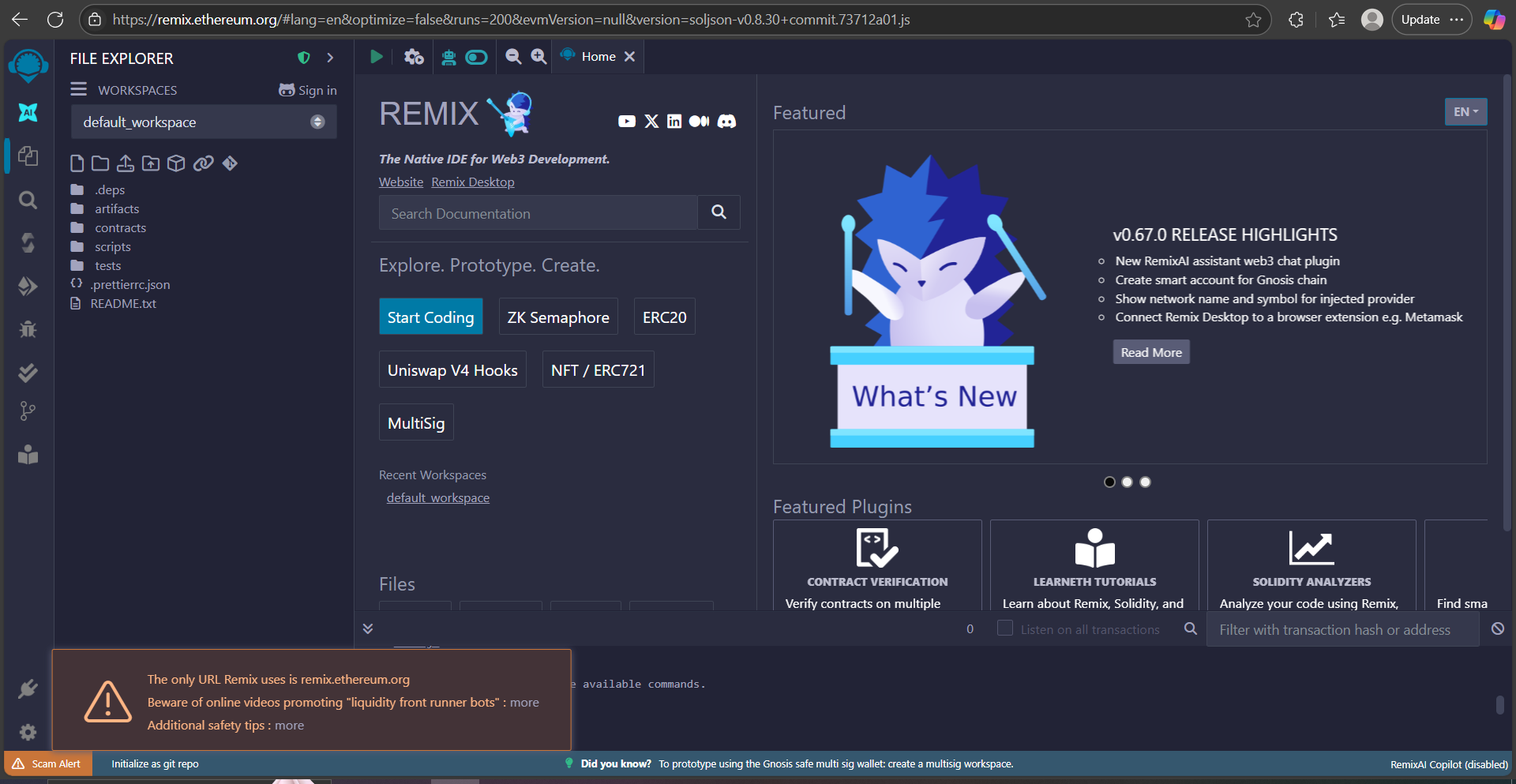
Step 2: Select contracts
Step 3: Double-click any of the shown contracts (files ending with .sol) – Note: you may decide to ask an LLM, like chatGPT, to generate a simple smart contract for you, then create a new file in remix (in the contracts folder), and paste code generated by LLM.
Step 4: Ensure you can see the code of the file you double-clicked.
Step 5: Click the green icon that looks like a play button (pay attention to the icons on the left of the screen, you should see one with a green checkmark after some seconds – see the image below for the icon – circled green. The image also shows steps 2-5)
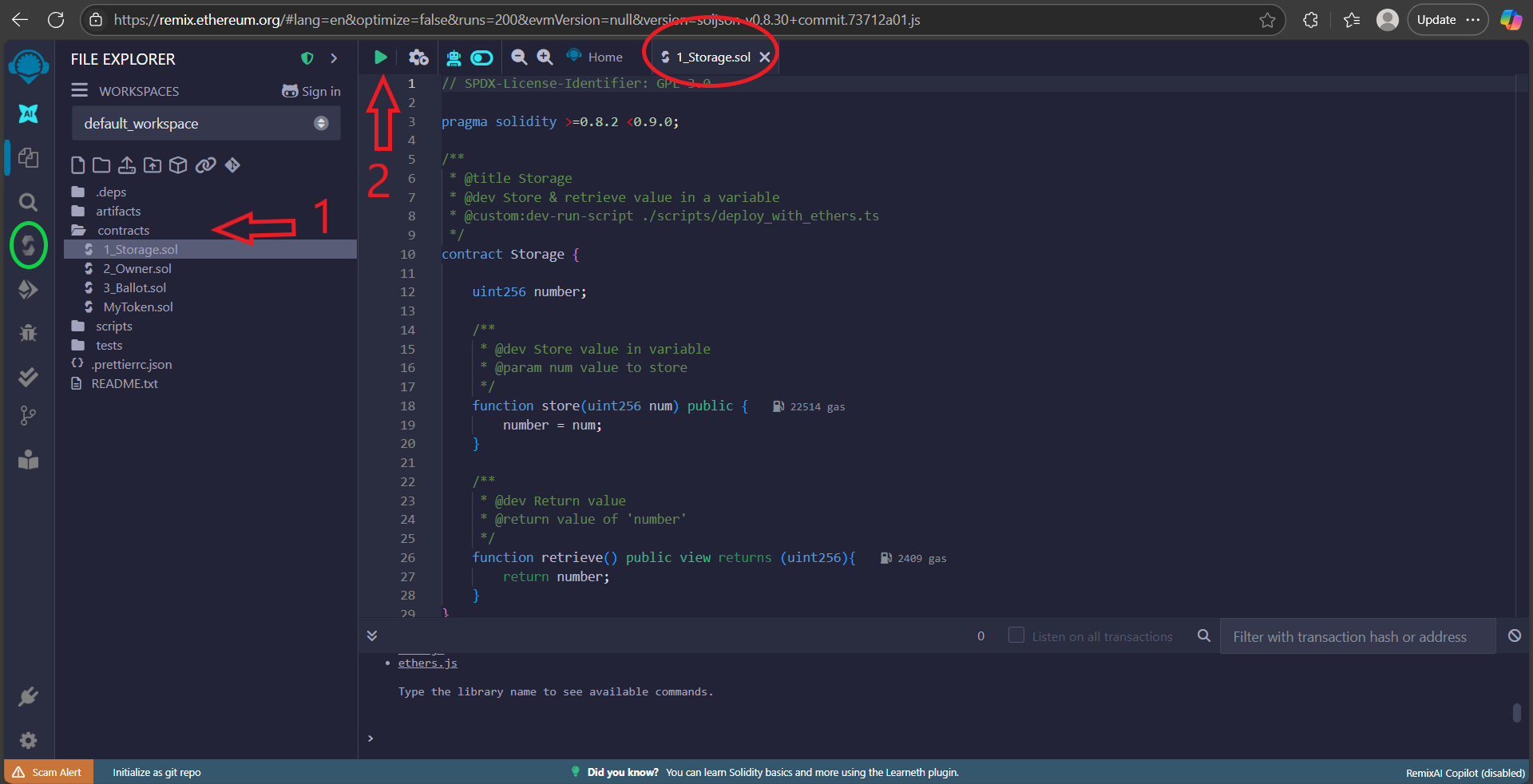
Step 6: Click the icon directly under the icon with the green checkmark (circled green in previous image) – you should see “deploy and run transactions” when you hover over it. You should now be in the deploy and run tab.
Step 7: Open your crypto wallet, and ensure you are on Helios chain (should be the same wallet you used when registering for helios testnet).
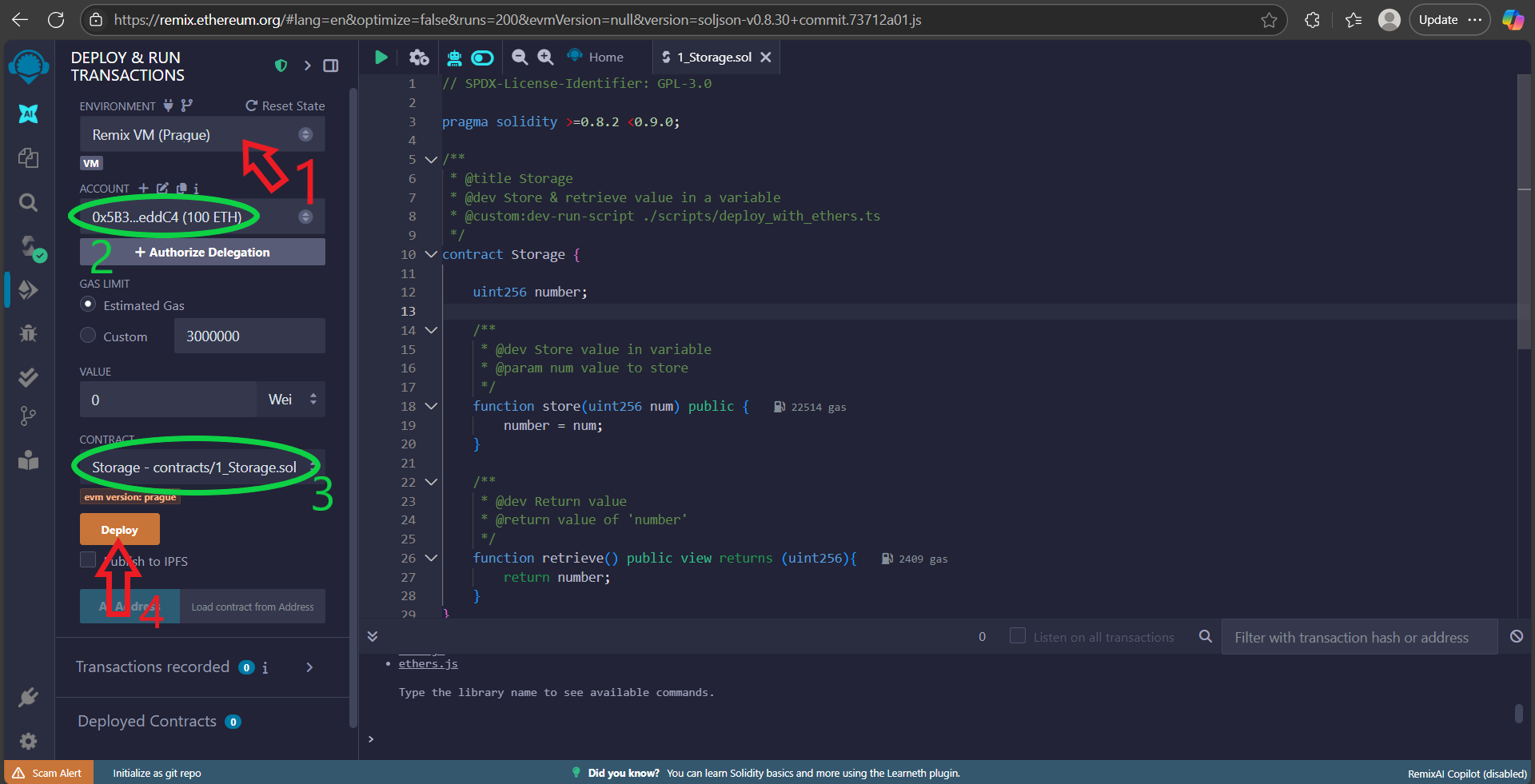
Step 8: Click “Remix VM” at the top-corner area and change to Injected Provider - Metamask, you would be prompted to approve, approve the connection.
Step 9: Check if you would see your wallet address and helios balance just underneath where you saw Remix VM. If you don’t see anything after waiting for like 1 minute, open your crypto wallet, and change the chain to any other chain, see if you see your wallet address and balance, change it back to helios chain, it should now show your helios balance.
Step 10: Check if you would see the script you ran in Step 5, in the contract section of the deploy and run page.
Step 11: Click Deploy, accept the transaction in your wallet.
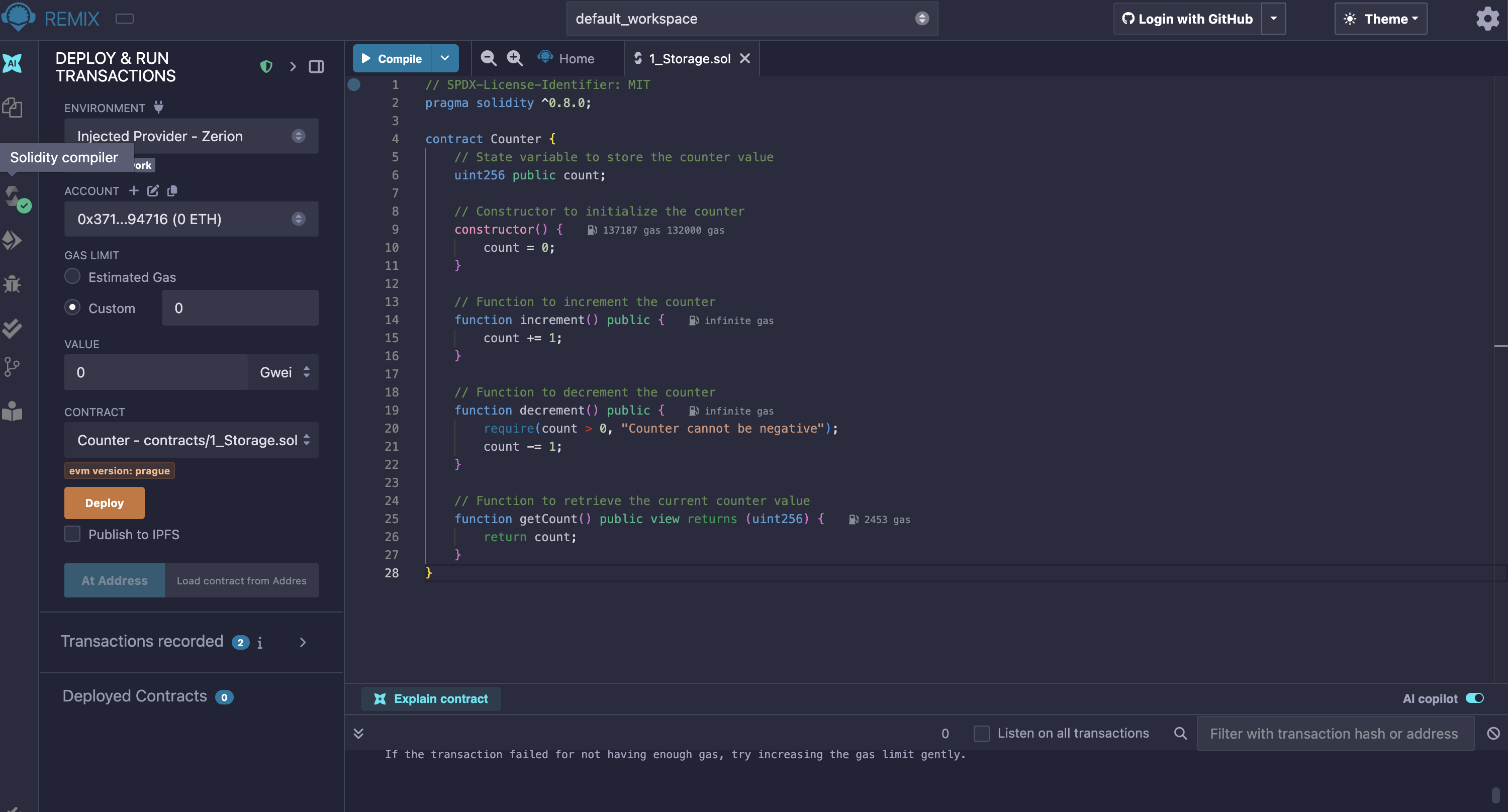
See a summary of steps 8-11 in the image below:
If the deployment is successful, you should see a number in front of deployed contracts (instead of 0), and a success message in the log. See the circled places in this image:

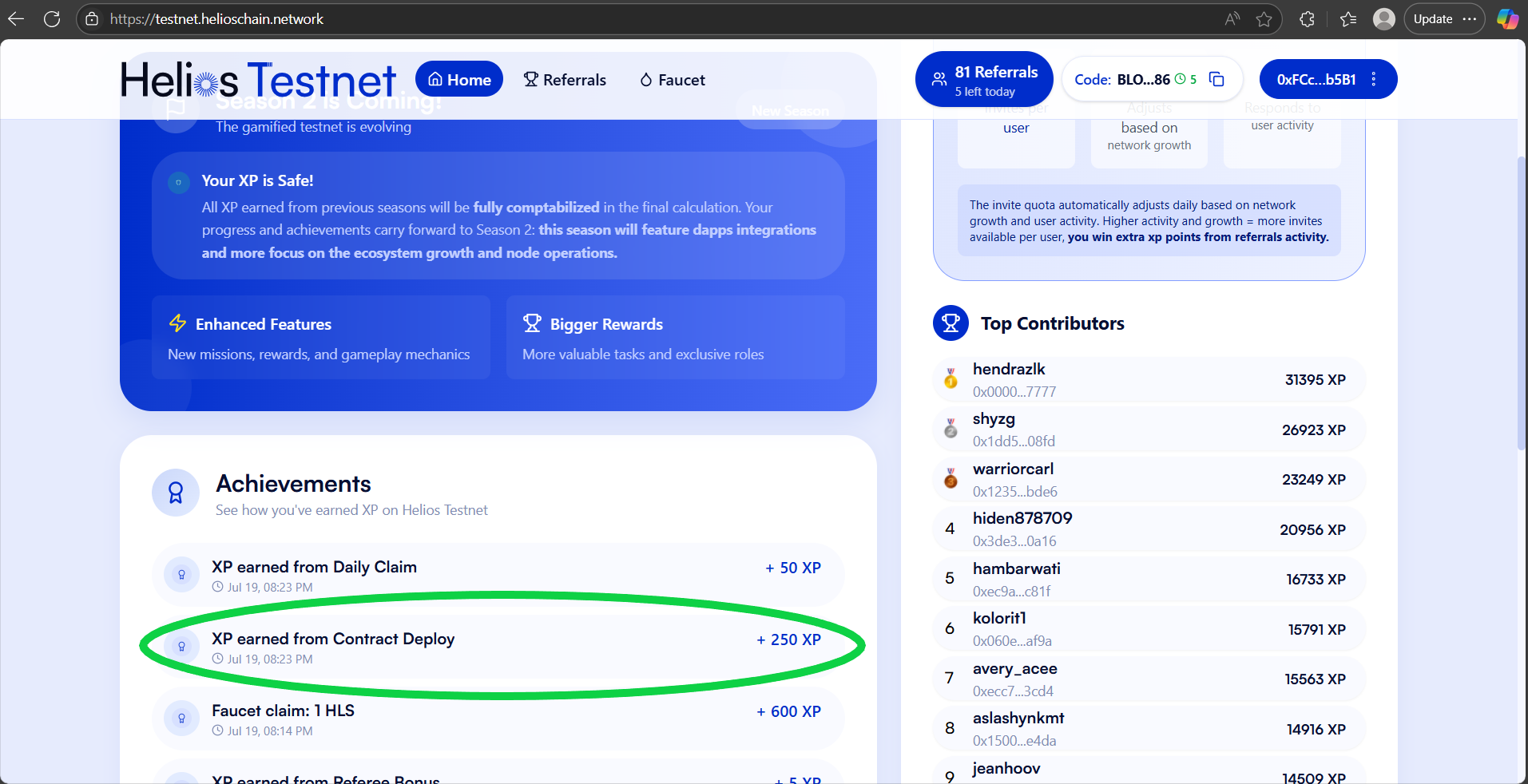
Step 12: Go to https://testnet.helioschain.network/. You should have received XP, like in this image:
END.
I hope I didn’t make it seem complicated, because it really isn’t. You can do it almost every day to get XP (whether it is listed as a daily mission or not).
 only 1 Picture and 2 Links.